Table of Contents
Overview
- Odoo is a suite of open-source business apps that cover CRM, eCommerce, accounting, inventory, point of sale, project management, etc.
- This article outlines how to integrate Odoo to your eShip account.
This integration is managed by Odoo. If you need help setting up eShip in your Odoo account, please contact Odoo support or raise a support ticket here.
Before you begin
In your eShip account, make sure you have the following:
-
Pickup address
You can set this by navigating to Settings > Pickup address -
Couriers
You can integrate with couriers by navigating to Settings > Couriers -
eShip API and Subscription key
You can find this by navigating to Settings > API
Setting up Odoo
To integrate your eShip account to the Odoo database:
- Log in to Odoo.
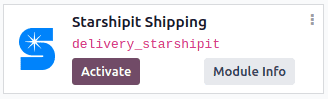
- Install the Starshipit module by going to Odoo's Apps module.
- Search for Starshipit Shipping.
- Click Activate to install it.
- Once installed, go to Inventory > Configuration > Settings.
- Activate the eShip Connector option.
- Click the eShip Shipping Methods link.
- Click Create.
To configure eShip in Odoo, fill out the fields on the Shipping Methods form as follows:
- Shipping Method: Type Starshipit.
- Provider: Select Starshipit from the drop-down menu.
- Delivery Product: Assign or create the delivery product that will appear on the sales order line when the cost of shipping is calculated.
In the Starshipit Configuration tab, fill out the following fields:
- eShip API Key
- eShip Subscription Key
- Origin Address: The address where products are shipped from
- Default Package Type: Set a default package type to include the weight of the empty package when automatically calculating shipping rates
Manually save the form by clicking the cloud icon next to the Shipping Methods / New breadcrumbs.
Important
To set a default package type, the Packages feature must be enabled in Inventory > Configuration > Settings.
To load the newly configured shipping products:
- Click the Select a service linked to the eShip account link at the bottom of the Starshipit Configuration tab. This will open the Choose eShip Shipping Service pop-up window.
- In the Delivery Service field, choose the desired shipping service for deliveries and returns from the drop-down menu.
- Click Confirm.
The chosen delivery service will populate in the Service Name field.
Note
We do not provide test keys when a company tests the sending of a package in Odoo. This means that if a package is created, your account may be charged.
Odoo has a built-in layer of protection against unwanted charges when using test environments. Within a test environment, if a shipping method is used to create labels, then those labels are immediately canceled after creation — this occurs automatically. Please note that depending on the shipping provider being used, the account might be charged for printing label, unless the order is cancelled manually on the couriers’s portal.
Switch between the test and production environment by clicking the Environment smart button at the top of the shipping method form.
Generate a label
When creating a quotation in Odoo, add the eShip shipping method by:
- Clicking the Add shipping button.
- In the Add a shipping method pop-up window, select eShip in the Shipping Method field.
- Calculate the shipping rate by clicking Get rate.
- Click Add to include the cost of shipping to the sales order line, labeled as the delivery product.
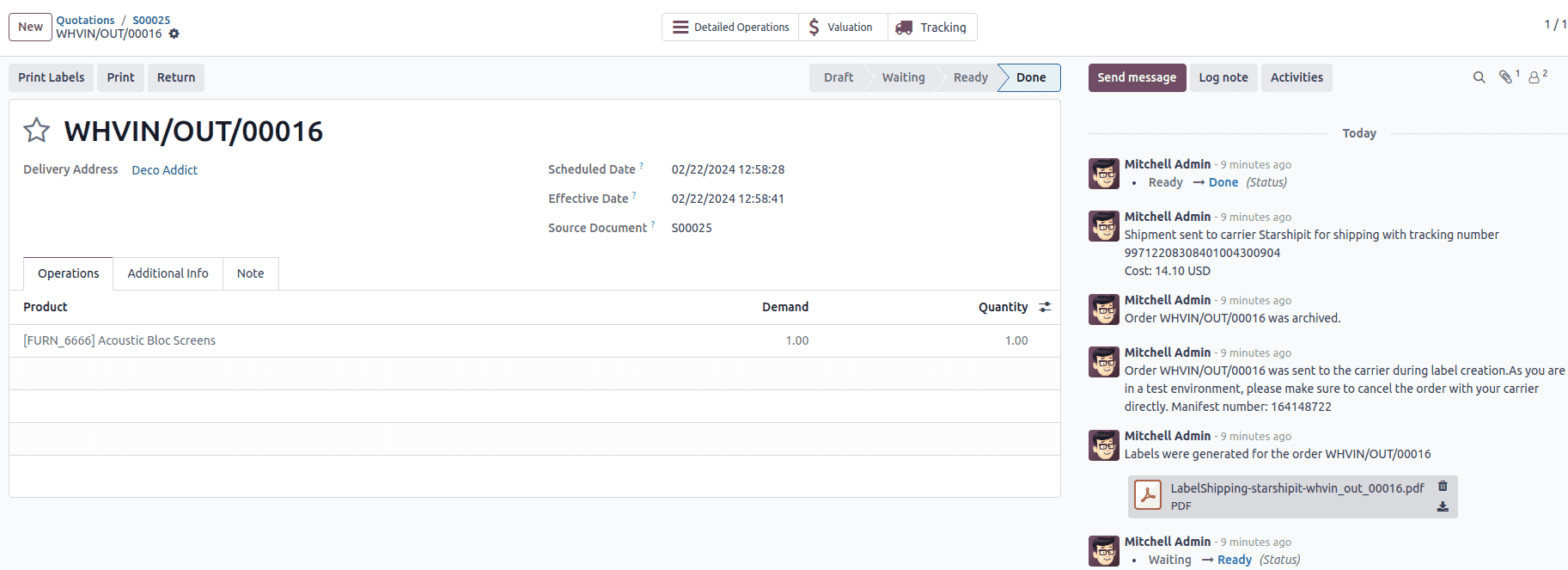
Then, Validate the delivery. Shipping label documents are automatically generated in the chatter, which includes the following:
- Shipping label(s) depending on the number of packages.
- Tracking number(s) if the selected courier supports it.
- Return label(s) if the eShip connector is configured for returns.
Important
Package weight in Odoo is calculated by adding the weights of the products plus the empty package saved in the database. Ensure the correct shipping option is selected, as the package weight is not automatically verified.
Verify the destination address, as eShip checks it when the order is created.
Finally, some couriers may require other information, such as an email address or phone number. Please ensure that all necessary information are set upon sending a shipping order.
Cancellations
If a delivery order is cancelled in Odoo, it will be automatically archived in eShip. However, the cancellation will not be sent to the courier itself, so make sure to log onto NZ Post to handle the cancellation manually.